For Permafrost crashing on startup, first install the available game update and update your graphics driver. If you can reach the menus, disable Multi-Frame-Generation-Type, then Super Resolution, lower the video preset, and test V-Sync one change at a time. If the error is specifically a GPU crash involving DirectX 12, DirectX 11 is a separate renderer test supported by the launch troubleshooting guidance.
There is no verified universal fix for every startup crash. Record whether the game fails before the menu, during character creation, while loading a world, or after movement begins. Keep Windows error 11c7, a GPU crash report, and a missing authentication token separate: they describe different failure states and should not all receive the same graphics workaround.
Identify the last screen that worked
The word startup can describe several different points. Before changing anything, note the last screen that appeared and the first action that failed. This gives each test a consistent endpoint and prevents a menu-only launch from being mistaken for a stable gameplay session.
| Failure point or message | Start with this distinction |
|---|---|
| Nothing reaches the main menu | In-game video settings may be inaccessible |
| Error 11c7 at launch | Investigate the Windows application block rather than assuming a GPU issue |
| GPU crash dump with DirectX 12 references | Test the graphics driver and renderer path |
| Character creation or introduction crashes | Record the exact transition that fails |
| A world begins loading and the game exits | Distinguish loading failure from the menu startup path |
| The world opens and then crashes | Record location, activity, and active video options |
| Missing or invalid authentication token | Follow multiplayer account-state troubleshooting |
Do not translate a message into a different diagnosis because another player used the word crash. A graphics crash report containing D3D12 references supports a renderer test. A Windows block before the game starts does not supply that same evidence.
If there is no error message, record that fact. “Exits to desktop during loading with no message” is more precise than assigning an error number that never appeared. The absence of a message limits the diagnosis, but a clearly identified failure point still helps you compare the result of a test.
Update before using an old workaround
Permafrost is in an active Early Access launch period. Available updates have addressed crashes and co-op behavior, and the newer Quest Fixes & Steam Invites announcement includes a workbench-crafting crash fix. That does not mean every startup or loading crash has been fixed.
Check that the game client has finished downloading its available update before retesting. If friends are involved, have both players update and restart. A guest testing an older client against a newly updated host introduces a second variable before you have established the first failure.
The earlier verified Build 25854170 is a historical reference, not a confirmed label for the newest announcement. Use the build shown by your own installation when recording the problem. Do not infer an exact build number from the announcement title or its relative publication time.
Next, update the graphics driver using the appropriate driver path for your hardware. Record the resulting driver version if you intend to report the problem. A statement that the driver is current is less useful for comparison than the exact version and the graphics processor name.
If the menus work, test the available video options
When you can reach Settings, use the game's Video page. The current troubleshooting order is to disable Multi-Frame-Generation-Type, then Super Resolution, lower the preset, and test V-Sync. Treat each as a separate test so you can identify what changed.
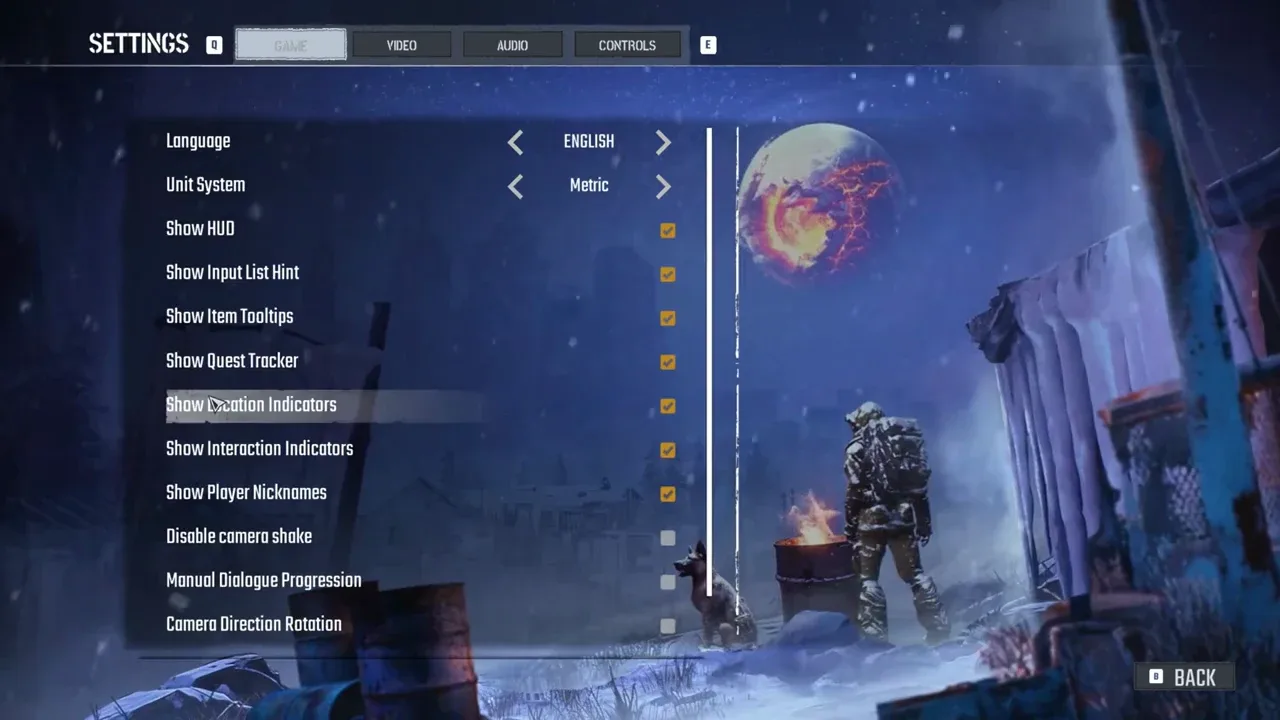
Interface reference: select Video to inspect graphics options; the pictured page is Game.
A practical sequence is:
- Note the current video preset and relevant options.
- Disable Multi-Frame-Generation-Type if the option is available.
- Repeat the action that previously crashed.
- If it still fails, return to the menu and disable Super Resolution.
- Repeat the same action again.
- Test a lower preset if the crash persists.
- Test V-Sync as the next individual change.
Do not change every available option and then claim one specific setting was responsible. A group of changes can establish that a different configuration behaves differently, but it cannot isolate the cause without another comparison.
Keep the test scene consistent. If the original failure occurred while loading your world, retry that loading step. If it occurred just after the introduction, reaching the menu again is not the relevant result. Continue far enough to pass the point that actually failed.
FSR has been disabled on RTX 20, 30, 40, and 50 series hardware to reduce crashes. If you use one of those cards and cannot select FSR, do not assume the missing option is itself a defect. Base your test on the options the current client exposes.
Use DirectX 11 only as a graphics-crash test
DirectX 11 was identified as a possible workaround for GPU crashes, including reports with DirectX 12 graphics references. The launch guidance allowed selecting DirectX 11 from the launch prompt or adding the launch option through Steam.
For the Steam launch-option route:
- Close Permafrost.
- Open the game's entry in the Steam Library.
- Open Properties and the General page.
- Add
-dx11to Launch Options for this test. - Launch the game and retry the same failure point.
- Record whether it still crashes, loads successfully, or develops a different problem.
Menu-access reference only; the image does not prove that a renderer workaround succeeded.
The option is a diagnostic change, not proof that the laptop or graphics card meets every requirement. If the game loads under DirectX 11, assess actual play afterward. A startup improvement and an acceptable frame rate are separate outcomes.
Keep track of the launch option so you know which renderer you are testing. If you later remove it, repeat the same scene before comparing results. Do not combine a renderer change with several video changes and then assign the improvement to DirectX 11 alone.
This test belongs to a graphics-crash branch. It is not a documented fix for greyed multiplayer, a missing authentication token, or a quest that refuses to register. Those problems have different prerequisites and should not be folded into a startup-crash checklist.
Keep Windows error 11c7 separate
Launch discussions identified error 11c7 with Windows Smart App Control blocking the game. If that exact error appears, inspect the Windows block rather than repeatedly lowering a graphics preset the game has not reached.
Check the application and the message Windows is showing. Keep a record of the exact error text and whether Permafrost ever starts. The relevant question is whether Windows is preventing launch, not whether the loaded world has too much graphical detail.
This guide does not treat changing system-wide protection as a routine fix for every crash. If the game is being blocked, the decision about that protection should follow verification of the specific executable and Windows message. A player report of a successful bypass does not establish the cause of an unrelated failure on your machine.
If the game launches after the block is resolved but later produces a GPU crash, you now have two separate stages. Record both rather than treating the second as proof that the first diagnosis was wrong. Getting past a launch block simply exposes the next part of startup.
Distinguish loading trouble from save progression
When the main menu opens but a particular world fails, record the world and loading action. That is more specific than saying the whole application cannot start. Keep the existing world identifiable before trying a different test, and avoid deleting a save as the first response to an unexplained crash.
If you compare another world, describe it as an isolation test. A second world loading successfully can show that the application reaches gameplay under that test, but it does not prove the original world is permanently damaged. Likewise, both worlds failing does not prove the graphics card is below minimum without a hardware comparison.
A crafting crash is also a different trigger from startup. The latest verified announcement addresses a workbench-crafting crash, so note whether your current failure actually occurs at a workbench. Applying that patch does not establish a fix for a crash before the introduction or during a separate world-loading transition.
Judge stability and performance separately
A game that stays open can still perform poorly. After a crash workaround, check the scene that matters to your play: loading the world, moving through a settlement, exploring, or joining the host session. Do not claim the entire experience is fixed because the application remained at the menu.
The published requirements include 16 GB system RAM and named desktop graphics examples. They do not supply guaranteed frame rates for every laptop or settings combination. Record the full CPU, GPU, system RAM, and graphics memory if performance remains inadequate after startup succeeds.
Linux and Proton are not officially supported under the current guidance. If that is your setup, include it clearly in any report. A renderer workaround that helps a Windows player does not establish support for an alternative operating system.
Stop repeating a failed test and preserve useful details
Once you have repeated a test at the same failure point and it produces the same result, record it and move to the next relevant branch. Repeating an unchanged launch does not provide a new diagnosis. The useful record is the difference between tests.
Keep these details together:
- The exact game build displayed by your installation, when available.
- Operating system and full graphics processor name.
- Graphics driver version and system RAM.
- The last working screen and the action that causes failure.
- Exact error text, or the fact that none appears.
- Whether DirectX 11 was selected.
- Video options tested and the result of each.
- Whether the failure happens in solo play, hosting, or joining.
If the game still crashes after the relevant update, driver, settings, and renderer tests, the remaining cause is unresolved. Preserve that result instead of adding unsupported launch flags, deleting the world, or promising that another unrelated workaround will fix it. A precise record makes the next investigation possible without repeating every step from the beginning.
Sources and version notes
Sources checked: 12 October 2026. Verification labels refer to the cited documentation and its stated limits; this site has not independently tested these steps in the game. Compare the information with your installed build.
- Known Issues & Workarounds (Updated October 11) — Developer issue post. Scope: Graphics options and disabled FSR on the listed RTX series.
- Permafrost Preview: What We Learned — Developer announcement. Scope: Historical GPU renderer -dx11 and Windows11c7 origin; movement rebinding introduced.
- Crashing :: Permafrost General Discussions — Developer replies and player reports. Scope: GPU crash -dx11 test and Windows error 11c7 / Smart App Control discussion.
- Permafrost Steam store and requirements — Official store. Scope: Published PC requirements; no proof of a universal crash fix.
Preview or launch-era advice is historical context. A previously working setting or renderer test is not a guarantee for every later update or hardware configuration.
Historical Steam Build25854170 is not newest-build proof. Published requirements and renderer tests do not establish FPS on a particular laptop.