
Your laptop is a reasonable candidate for Permafrost if it meets the Windows, processor, memory, graphics, and storage requirements together. The minimum list calls for 16 GB RAM and graphics comparable to a GTX 1060 6 GB or Radeon RX 590 8 GB. A laptop with 16 GB RAM alone does not pass that check. You also need to identify its graphics processor and dedicated graphics memory.
The published requirements use desktop component names. They do not provide verified laptop benchmarks, a guaranteed frame rate, or a target resolution for every listed configuration. Treat the table as a starting point, then check the exact laptop model and test the current Early Access game. Meeting the requirements does not rule out a launch bug, while a launch bug does not automatically mean the laptop is too weak.
Compare all the required components
| Component | Minimum | Recommended |
|---|---|---|
| Operating system | Windows 10, 64-bit | Windows 10, 64-bit |
| Processor | Intel Core i5-8600K or AMD Ryzen 5 3500 | Intel Core i5-12400 or AMD Ryzen 5 5600X |
| System memory | 16 GB RAM | 16 GB RAM |
| Nvidia graphics option | GTX 1060 with 6 GB graphics memory | RTX 3070 Ti with 8 GB graphics memory |
| AMD graphics option | Radeon RX 590 with 8 GB graphics memory | Radeon RX 6750 XT with 12 GB graphics memory |
| DirectX | Version 11 | Version 12 |
| Free storage | 30 GB | 30 GB |
The two graphics options in each column are alternatives. You do not need both an Nvidia card and an AMD card. The memory figures belong to the named graphics cards; they are separate from the 16 GB system RAM requirement.
Keep the comparison component by component. A strong processor cannot turn an unidentified integrated graphics chip into the listed dedicated card. Likewise, a strong graphics processor does not establish that the laptop has enough system memory. Mark an unknown component as unknown until you identify it, rather than assuming the whole laptop passes because one part looks promising.
The recommended column is a higher hardware reference, not a promise of a particular visual preset. There is no verified result here saying every recommended laptop delivers sixty frames per second, ultra settings, or four-player performance at a specific resolution. Avoid making a purchase decision around those unsupported numbers.
Identify what your laptop actually contains
Start with the laptop's full model number and installed configuration. Product families often include several processor, memory, and graphics combinations. A name printed on the lid, such as a gaming series name, may describe a whole range rather than your particular machine.
On Windows, inspect the system information and graphics information available on your machine. Write down the following before comparing it with the table:
- The complete processor name, including its model suffix.
- Installed system RAM.
- The complete graphics processor name.
- Dedicated graphics memory, where a dedicated graphics processor is present.
- The Windows edition and whether the installation is 64-bit.
- Available space on the drive where you intend to install Permafrost.
Some laptops show both an integrated graphics processor and a separate graphics processor. Record both. Seeing an integrated chip in one screen does not prove the laptop lacks a dedicated one; seeing a dedicated card listed does not prove the game is using it. If there are two graphics processors, confirm the active one when testing the game.
Do not compare processors using only the words Core i5, Core i7, or Ryzen 5. Those names cover different generations and designs. The requirement is a complete model, not a family label. The same principle applies to graphics: an RTX name without the model and laptop configuration is incomplete information.
A laptop GPU with a similar name to a desktop GPU is not a documented Permafrost performance match by itself. Its power configuration and the rest of the laptop also matter. If an exact comparison is unavailable, describe the result as uncertain instead of silently treating the desktop requirement as a laptop benchmark.
Read RAM and graphics memory correctly
System RAM and dedicated graphics memory answer different questions. The 16 GB requirement is system memory. The 6 GB, 8 GB, and 12 GB figures in the graphics rows describe the named cards' graphics memory. Do not add shared graphics memory to dedicated memory and claim the result matches the requirement.
For example, a laptop advertised as having 16 GB memory still needs a graphics check. It may have an integrated chip, a dedicated graphics processor, or both. Conversely, a dedicated card with the listed amount of graphics memory still leaves the system RAM and processor comparisons unfinished.
The minimum Nvidia and AMD examples use different graphics memory amounts. That is why this page retains the named card and its memory together. Reducing the table to a single universal graphics-memory number would remove an important condition. Memory capacity by itself also does not identify how capable the graphics processor is.
If your laptop has less than 16 GB system RAM, it falls below the published memory baseline. That is a concrete mismatch. There is no verified workaround here that makes a lower amount equivalent. Lowering a video preset can be a useful performance test, but it does not change the hardware requirement or establish that a below-minimum machine will run reliably.
Separate Windows support from alternative systems
The verified PC requirements are for Windows. Linux and Proton are not officially supported in the current guidance. A report that someone launched the game on another system would describe that setup; it would not establish a supported laptop configuration for everyone.
The Steam Deck compatibility status in the captured listing was unknown. It should not be read as a verified, playable, or unsupported rating. A handheld's specifications and a compatibility badge are different kinds of information, and neither should be guessed from the other.
There is also no confirmed native macOS configuration in this requirements set. If your laptop uses macOS or Linux, do not treat the Windows table as a completed compatibility answer. The operating system requirement remains unresolved even if the processor and memory numbers seem adequate.
For a Windows laptop, check the 64-bit requirement directly. Permafrost lists both a 64-bit processor and a 64-bit operating system. The presence of Windows alone is not the full condition. Check free space on the intended installation drive as well; space on another drive does not satisfy the location where the game files will be stored.
Use a cautious first launch to check stability
After installing the current game update, launch Permafrost without assuming that the first successful menu is a complete performance result. Reaching the menu shows that startup progressed. Loading a world, moving through the environment, and continuing to play test additional parts of the experience.
Use a simple sequence so that a failure has a clear context:
- Record the laptop specifications and the game build displayed by your installation, if available.
- Install the available game update and update the graphics driver.
- Launch the game and note whether you reach the main menu.
- If the menu is accessible, open Settings and inspect the Video options.
- Start with a lower preset if performance or stability is uncertain.
- Load a world and note whether the failure happens during loading or after control begins.
- Change one relevant option at a time and repeat the same test.
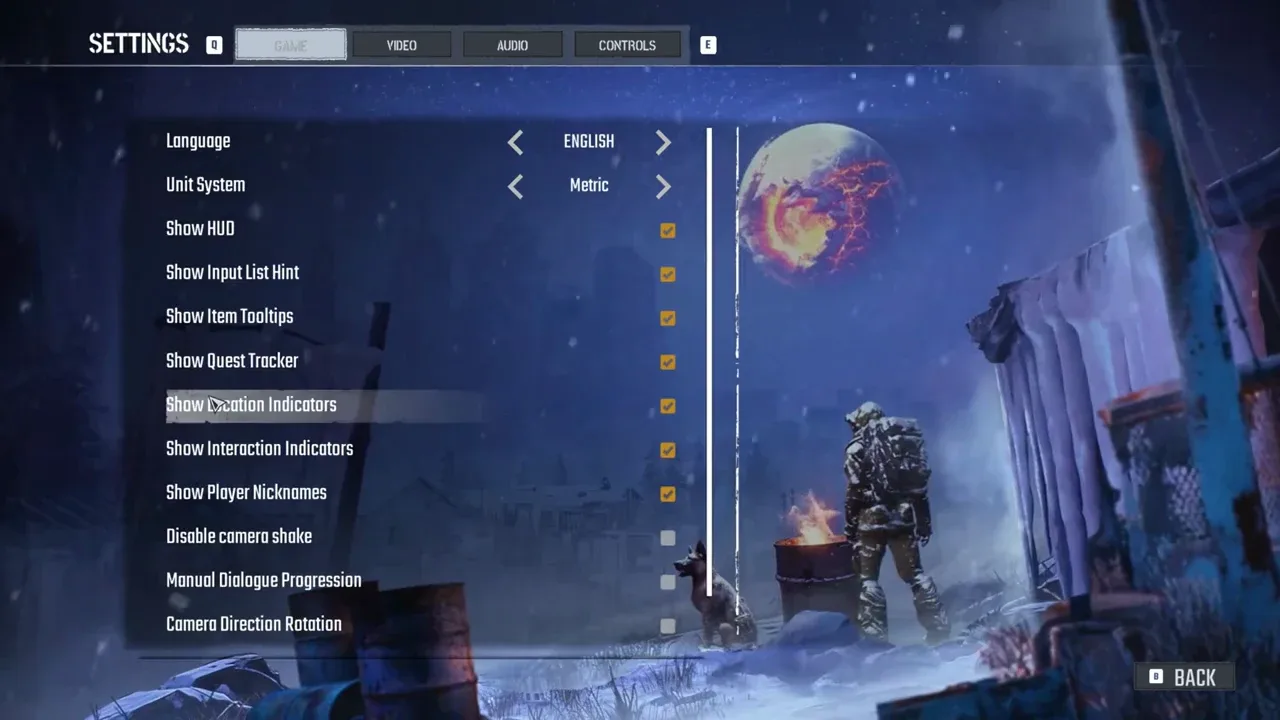
Interface reference: open the Video tab for the graphics checks; this Game page shows other settings.
This sequence is a way to assess your own configuration. It is not a claim that a particular setting fixes every laptop. Avoid changing several options together and then assigning the result to one of them. If a change helps, keep a note of the option, the previous value, and the place where you retested it.
Apply the available graphics guidance in order
Current crash guidance recommends updating the graphics driver. When the menus are accessible, it also recommends disabling Multi-Frame-Generation-Type, then Super Resolution, lowering the preset, and testing V-Sync. These are troubleshooting steps, not mandatory settings for every laptop.
FSR has been disabled on RTX 20, 30, 40, and 50 series hardware to reduce crashes. An unavailable FSR option on one of those configurations does not, by itself, prove an installation error. Do not plan your expected performance around an option the current game has disabled.
Interface reference for reaching Settings after a successful launch; it does not show a performance result.
The important distinction is between stability and speed. If the game previously crashed and now loads, that is an improvement in startup behavior. It does not establish a smooth frame rate. If the game stays open but feels slow, continue evaluating performance rather than calling the launch problem solved and assuming the hardware comparison was sufficient.
Older GPU crash guidance also identified DirectX 11 as a possible workaround. If you are already troubleshooting a graphics crash, keep that test separate from the general requirements comparison. A working alternative renderer does not prove that all graphics features or the performance level you want are available.
Judge the result against the way you will play
Permafrost includes frozen settlements, wilderness exploration, scavenging, construction, and online cooperation for up to four players. A useful laptop test should include the kind of activity you intend to spend time doing, rather than ending at the character screen.
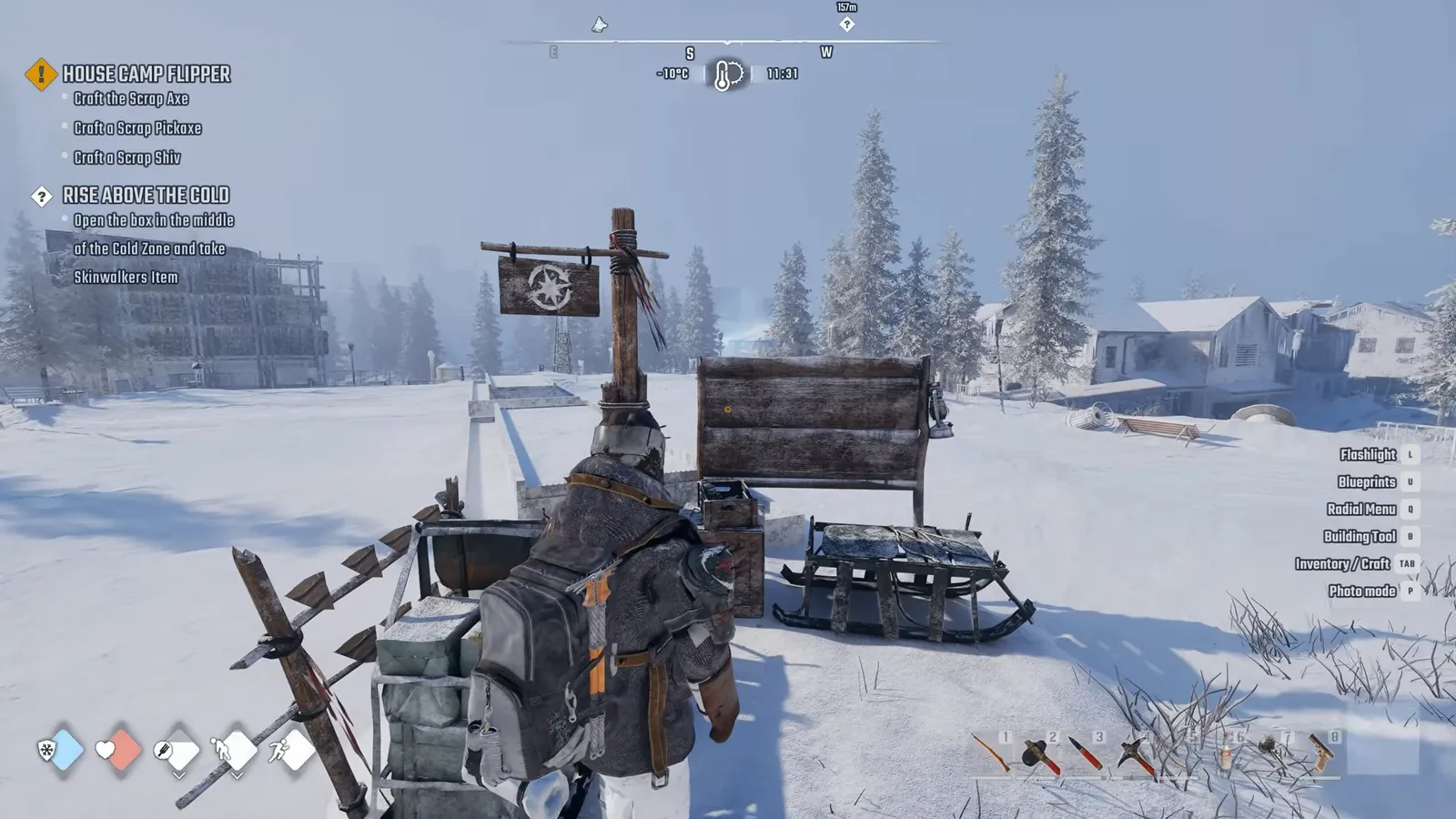
Loaded-world scene reference: assess your own laptop after reaching an actual play area, not only the menu.
If you intend to play solo, check a normal exploration session and your return to shelter. If you intend to join friends, assess an actual cooperative session after the host has reached the cabin and opened a multiplayer world. Connection failures are a different problem from weak hardware, so record them separately.
Finish with one of three honest conclusions: the laptop meets the listed requirements and your current test is acceptable; it has a specific requirement mismatch; or its exact performance remains uncertain because the component comparison or gameplay test is incomplete. That result is more useful than a blanket yes based on RAM alone or an unsupported frame-rate prediction based on a graphics-card name.
Sources and version notes
Sources checked: 12 October 2026. Verification labels refer to the cited documentation and its stated limits; this site has not independently tested these steps in the game. Compare the information with your installed build.
- Permafrost Steam store and requirements — Official store. Scope: Published Windows PC requirements; no measured laptop performance guarantee.
- Known Issues & Workarounds (Updated October 11) — Developer issue post. Scope: Graphics options and the documented RTX FSR limitation.
- Permafrost Preview: What We Learned — Developer announcement. Scope: Historical GPU renderer -dx11 and Windows11c7 origin; movement rebinding introduced.
Preview or launch-era advice is historical context. A previously working setting or renderer test is not a guarantee for every later update or hardware configuration.
Named desktop GPU requirements are not measured laptop performance equivalence or guaranteed FPS.